Free AI Image Editor
Edit any photo with a simple text prompt. Change backgrounds, swap colours, remove objects, add details — powered by Google's Nano Banana model. Free, no signup, no watermark.
See how it works
Drag the handle to compare before & after
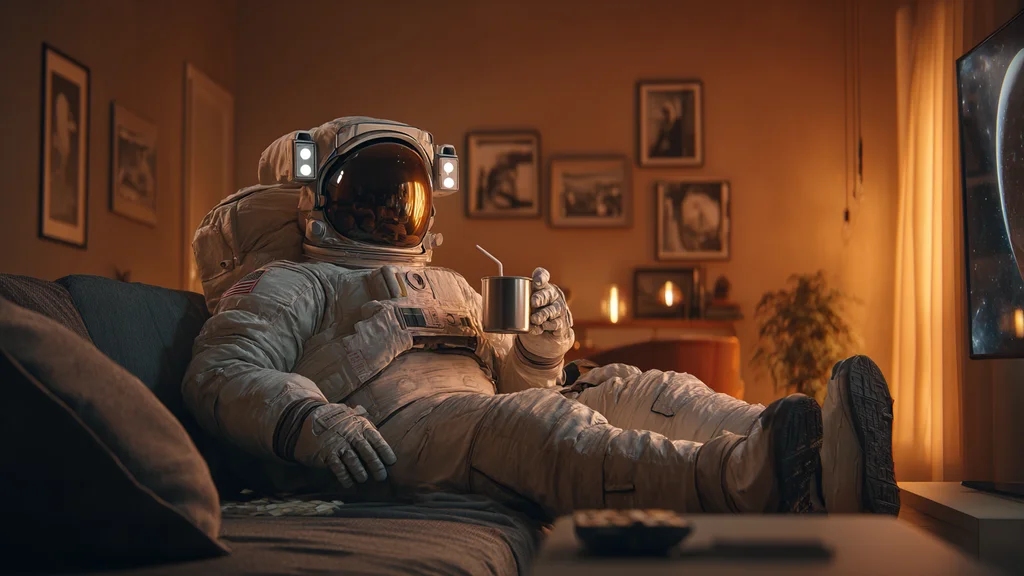
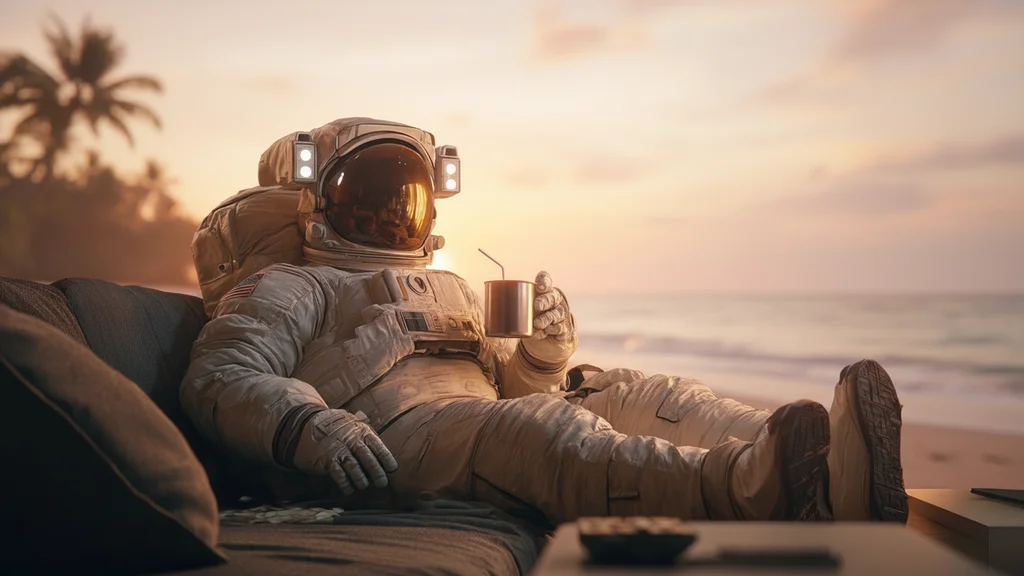
0/500 characters · be specific about what to change
Auto keeps the original photo's proportions
AI image edit · usually 8-20 sec · limited to 1/hour, 3/day
Edited image
How to edit images with AI in 3 steps
Upload your image
Drop a JPG, PNG or WEBP file up to 10 MB. Higher resolution input gives sharper output — most modern phone photos work perfectly.
Describe the change
Write what you want in plain English: "change background to snowy mountains", "make the shirt red", "remove the trash can". Pick an aspect ratio if needed.
Download the result
Generation takes 8-20 seconds. Drag the before/after slider to compare, then download a watermark-free PNG.
Why use our free AI image editor
Powered by Nano Banana
Google's Gemini 2.5 Flash Image — currently the best image-edit model for preserving the original subject while transforming everything else.
Plain-English editing
No layers, no masks, no Photoshop skills required. Describe what you want and the AI handles selection and blending.
Before / after slider
Compare the edit and the original side-by-side with a draggable handle — see exactly what changed at a glance.
5 aspect ratios
Keep the original proportions or re-target to 1:1, 16:9, 9:16, 4:3, or 3:4 for social platforms — Instagram, TikTok, YouTube thumbnails.
Free, no signup
No account, no credit card, no watermark on the output. 1 edit per hour and 3 per day per user keeps the tool free for everyone.
Privacy-first
Your uploaded photo is processed once and deleted from our servers shortly after. We never use your images for training.
What you can do with the AI image editor
Swap backgrounds for product photos
Take a phone shot and drop in a studio backdrop, lifestyle scene, or solid colour — perfect for ecommerce listings without hiring a photographer.
Change clothing colours
Try a different colour palette on a shirt, jacket, or shoes before you commit to a design. Useful for fashion designers and online sellers.
Remove distracting objects
Get rid of photobombing tourists, garbage cans, traffic cones, or random clutter. The AI fills the gap with surrounding scenery naturally.
Build holiday cards & profile pics
Add hats, sunglasses, snow, festive backgrounds, or seasonal effects to any portrait. Great for end-of-year cards and themed avatars.
Real estate decluttering
Empty rooms of personal items before listing — remove magnets from the fridge, clear the kitchen counter, take down family photos.
Style transfer
Convert any photo to a pencil sketch, watercolour, oil painting, anime style, or low-poly render. Same subject, completely different look.
Add accessories to portraits
Try on sunglasses, hats, earrings, makeup, or hairstyles without leaving your couch. Useful for ecommerce previews and creative experiments.
How to write prompts that actually work
- 1
Be specific about what to change. 'Change the car to deep emerald green with metallic finish' beats 'green car'. Name the object, the new colour, and the texture.
- 2
One or two edits per prompt. Asking for 'change background AND add a hat AND remove glasses' in one go usually fails. Do edits in sequence — edit, download, re-upload, edit again.
- 3
Mention what to preserve. 'Replace background with beach, keep the person's face, hair, and pose untouched' is far more reliable than 'put me on a beach'.
- 4
Use specific style words. 'Photorealistic', 'oil painting', 'anime style', 'cinematic lighting', 'soft golden hour' — these all bias the model in useful directions.
- 5
Set the aspect ratio for social. Pick 9:16 for TikTok/Reels, 16:9 for YouTube thumbnails, 1:1 for Instagram feed posts. The AI will recompose the scene to fit.
- 6
Iterate fast — don't expect one-shot perfection. Re-prompt with small tweaks (' but more vibrant', '...slightly warmer lighting'). Most professional edits take 3-5 iterations.
Edit any image with a single prompt
Free AI image editor — no signup, no watermark, no software install.
Start editing →Frequently asked questions
Everything you need to know about the Free AI Image Editor. Still stuck? Email us at info@textphoto.app.
How is this different from Photoshop?
Will it preserve the original photo's quality?
What kinds of edits work best?
Why is there a usage limit?
Is my image stored?
Can I use the result commercially?
Tips for the best results?
More AI tools in Photo enhancement
Free, no signup — try a different one next.
Free AI Photo Upscaler
Free AI photo upscaler — 2× or 4× without losing quality. Realistic detail, no signup.
Free AI Background Remover
Free AI background remover — clean cut-out from any photo in 2 seconds. No signup.
Free AI Photo Colorizer
Colorize black-and-white photos with AI. Free, no signup.
Free AI Photo to Cartoon Converter
Free AI cartoonifier — turn any photo into a cartoon-style illustration. No signup.